
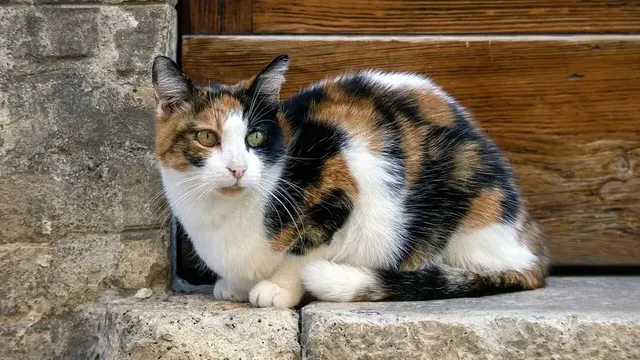
Rare Cats Guide
Discover rare cats in CatchCat APK. Learn what makes a cat rare, where rare discoveries happen, how AI recognition helps, and how rare entries complete your collection.
Fix the most common CatchCat APK errors. Step-by-step help for camera problems, recognition failures, sync issues, crashes, and update trouble, in calm checklist order.
Table of Contents
Every CatchCat APK player eventually meets an error: a camera that will not open, a scan that will not complete, or progress that seems stuck. Most of these problems look serious and are not, because they share a short list of ordinary causes.
The secret to fixing errors calmly is order. Work from the simplest explanation to the rarest, changing one thing at a time, and most problems surrender within a few steps. For the full overview, see CatchCat for Android.
This guide organises the common errors by symptom, with the fix sequence that resolves each one.
Start with permission. The game cannot use a camera Android has blocked, so confirm camera permission is granted in the app settings before anything else.
Next, close other apps that might be holding the camera, such as a leftover video call or scanner, and reopen CatchCat.
A device restart clears stubborn camera locks that survive both checks, and it fixes this error more often than any other single step. Our Camera Permissions and Troubleshooting Guide explains this in more detail.
Repeated recognition failures are usually an input problem, not an intelligence problem. Improve the view before blaming the system: better light on the cat, a steadier frame, and markings clearly visible.
Check the lens for smudges, which scatter light and soften exactly the details recognition reads.
If one particular cat keeps producing uncertain results across good conditions, its features may genuinely sit between breeds, and accepting the best entry is the right outcome. This topic is covered further in our AI Cat Recognition Guide.
An album that looks stale after offline play is almost always an unfinished sync. Connect to a stable network, open the game, and give it an uninterrupted minute.
Confirm you are signed into the same account you played on. A surprising share of missing progress is simply a different account being viewed.
Restart the app once after syncing completes so the album reloads its newest state.
Work through errors in this order:
Occasional crashes after long sessions often clear with a simple restart, especially on older devices where memory pressure builds across a walk.
Check storage space next. A nearly full phone destabilises many apps at once, and freeing a little space is a whole-device fix.
If crashes repeat at the same action, update the app, since repeatable crashes are exactly what maintenance updates target. Our Android Compatibility Guide is worth a read alongside this section.
A stuck or failing update usually needs space, signal, or patience. Free storage first, switch to a stable Wi-Fi connection, and try again without other downloads competing.
Never interrupt an update midway by force-closing everything in frustration. Let it finish or fail cleanly before retrying.
After any successful update, open the album and confirm your collection before playing, as a standing habit.
Errors feel like interruptions to the game, but handled calmly they are maintenance for the same systems that make the game work: camera, recognition, sync, and storage.
A player with a checklist is never stuck for long.
Work the steps in order, change one thing at a time, and get back to the cats.
Another app is usually holding the camera, or permission was withdrawn. Close background camera apps, confirm the permission in Android settings, and restart the app. A device restart clears any lock that remains.
It almost certainly has not lost them. Recent entries from offline play are waiting to sync. Reconnect to a stable network, stay signed into the same account, and allow the sync to finish before checking again.
Some cats genuinely sit between breeds, and mixed features produce uncertain results even in good light. Improve framing once, accept the best entry, and look for a cleaner encounter on another day.
Only as a last step, after permissions, sync, restart, and update checks. Before reinstalling, confirm you are signed in and synced so your collection returns cleanly afterwards.
Most CatchCat APK errors resolve with a calm order of checks: permissions and sign-in, light and lens, a completed sync, a restart, and an update. Work through the common errors and fixes in that sequence, changing one thing at a time, and nearly every problem ends without drama, leaving you free to return to exploring and collecting.
Download CatchCat APKDiscover rare cats in CatchCat APK. Learn what makes a cat rare, where rare discoveries happen, how AI recognition helps, and how rare entries complete your collection.
Improve your cat spotting in CatchCat APK. Learn where cats rest, how to read body language, the best times to explore, and how to approach without scaring discoveries away.
Get cleaner AI recognition results in CatchCat APK. Learn how lighting, distance, angles, and a steady camera improve breed identification and collection accuracy.